Configure Model Provider
This guide shows how to integrate AI Token商城 with Claude Code via CC Switch — an open-source provider management tool with a visual interface.
🔑 Key Configuration
https://ai.ccdan.live1. Install CC Switch
macOS
brew install --cask cc-switchOr download .dmg installer from GitHub Releases.
Windows
Download the .msi installer from Releases.
Linux
# Debian / Ubuntu
sudo dpkg -i CC-Switch-*.deb

# Fedora / RHEL
sudo rpm -i CC-Switch-*.rpm

# AppImage
chmod +x CC-Switch-*.AppImage && ./CC-Switch-*.AppImage
Supported: macOS 12+, Windows 10+, Ubuntu 22.04+
2. Add Provider
Step 1: New Provider
Open CC Switch → provider management → click + in top right.
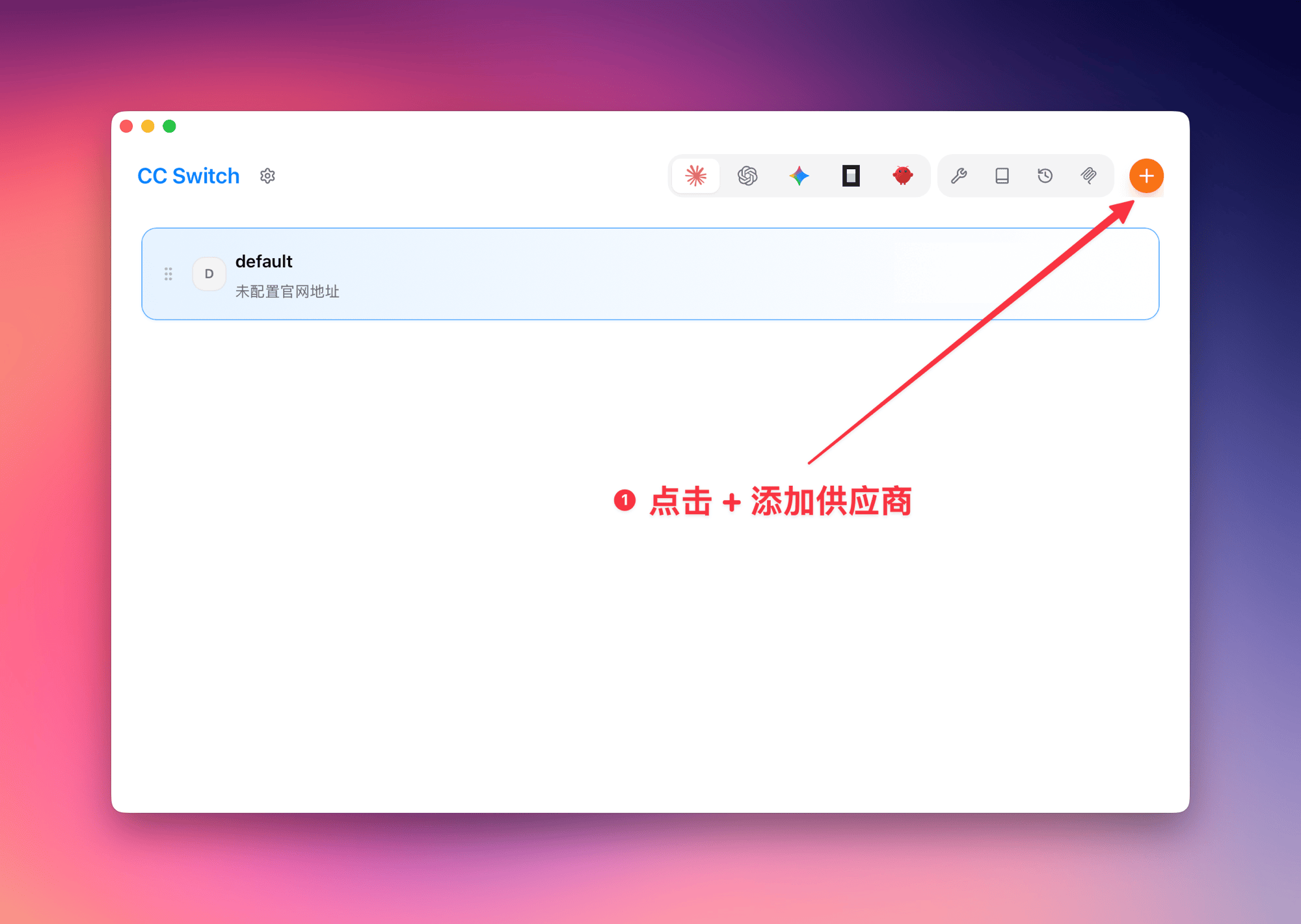
Step 2: Fill Configuration
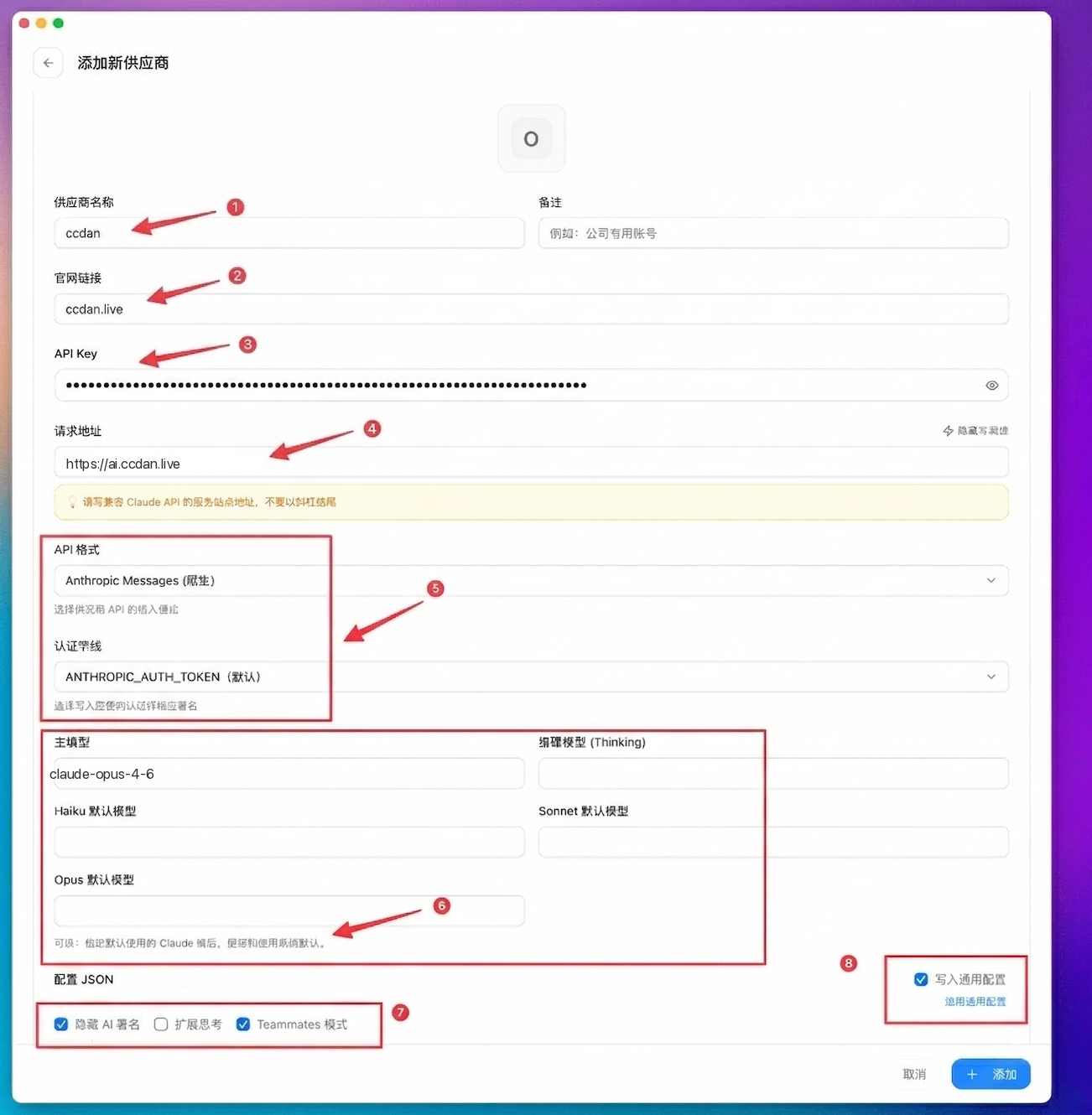
| # | Field | Value |
|---|---|---|
| ❶ | Provider Name | ccdan-claude |
| ❷ | Website | https://ccdan.live |
| ❸ | API Key | Buy a code on ccdan.live, redeem at ai.ccdan.live |
| ❹ | Request URL | https://ai.ccdan.live |
| ❺ | API Format | Anthropic Messages (native) / ANTHROPIC_AUTH_TOKEN |
| ❻ | Model Config | Main model: claude-opus-4-6 or your custom model ID |
| ❼ | Write to Global Config | ✅ Check (applies to all projects) |
Step 3: Activate
Select ccdan-claude in the list, click Use, wait for "switch successful" message.
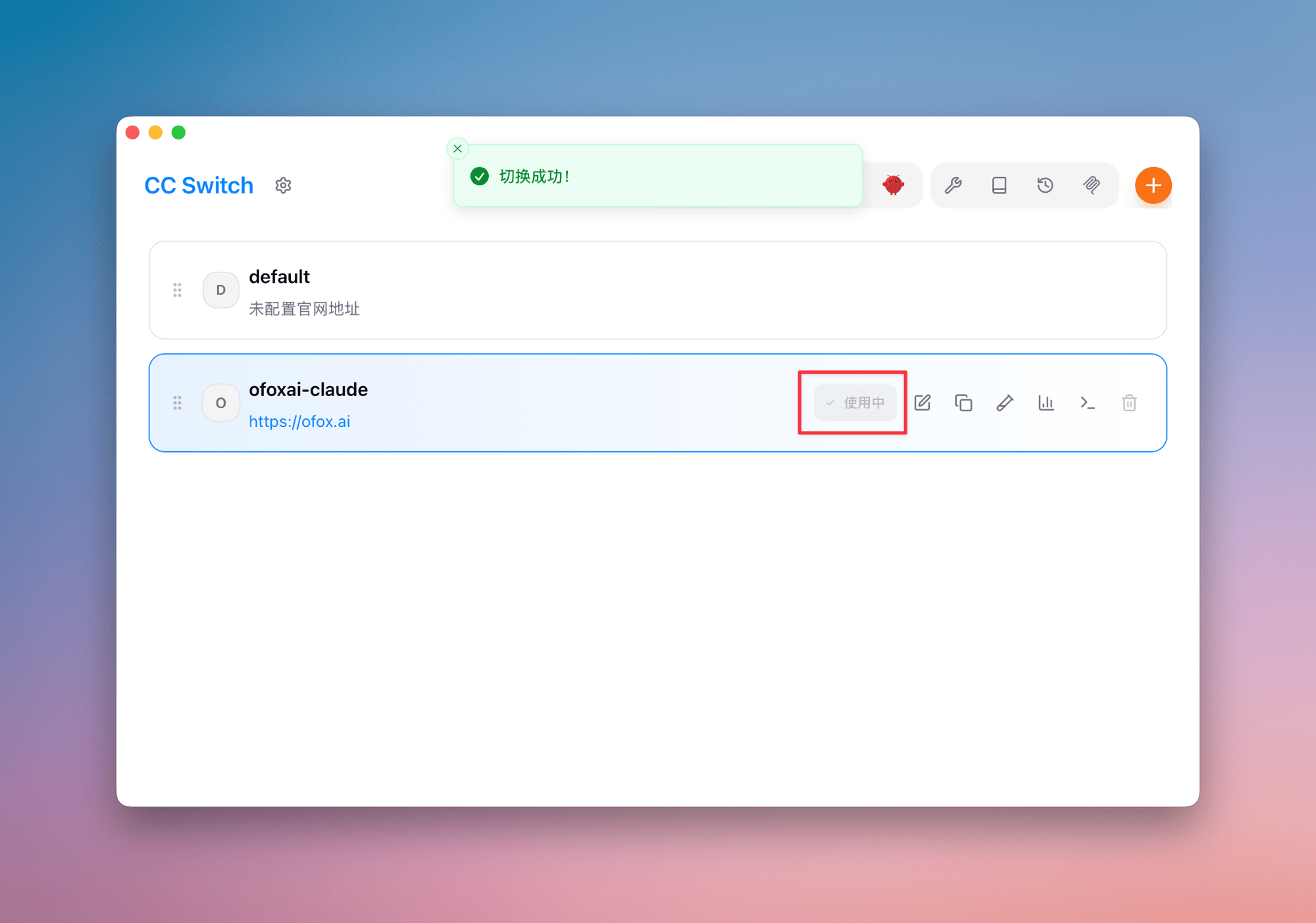
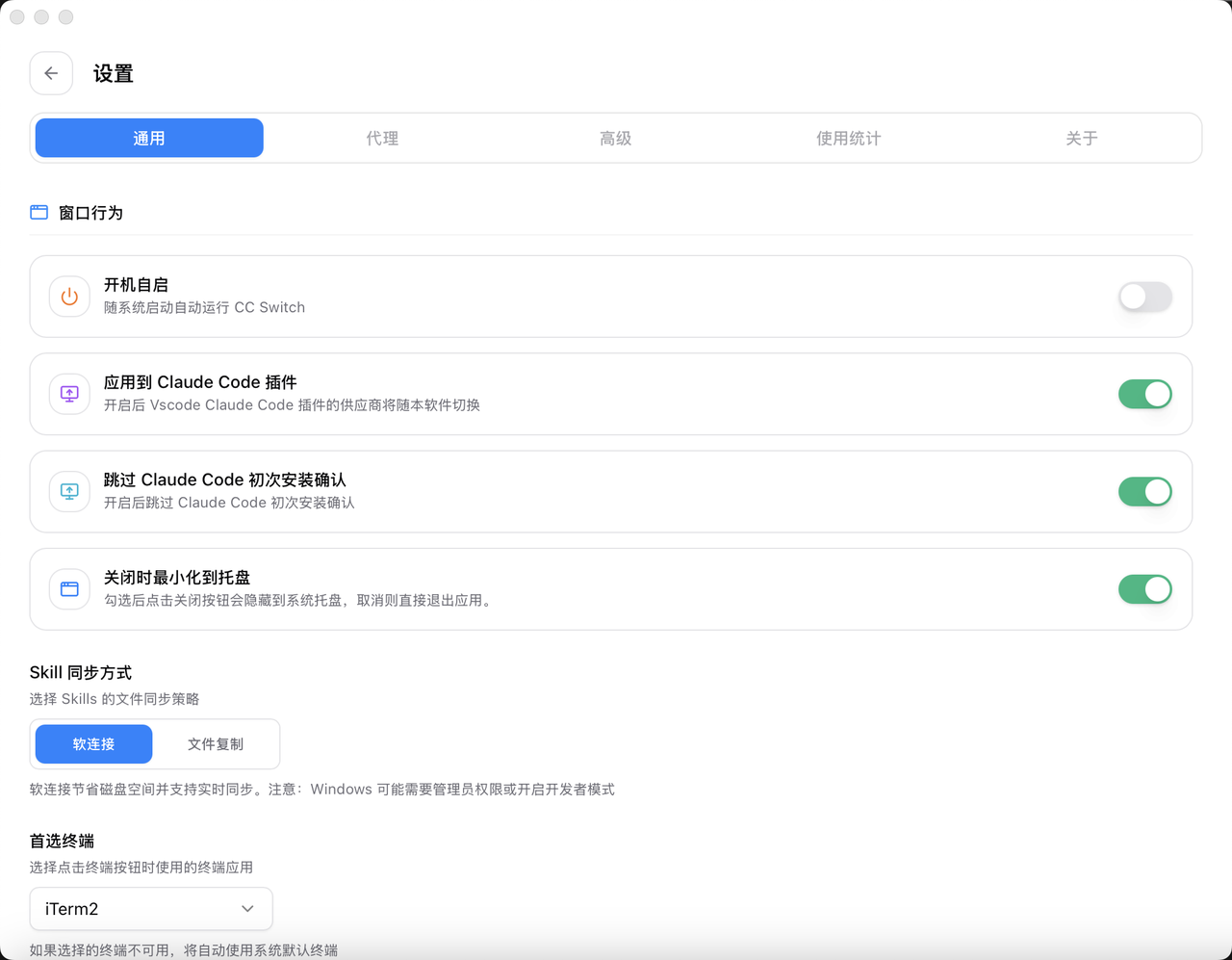
3. Enable "Skip Initial Install Confirmation"
Open CC Switch → Settings → General, and enable "Skip Claude Code initial install confirmation" so first launch isn’t interrupted.
4. Verify Configuration
cd your-project
claude
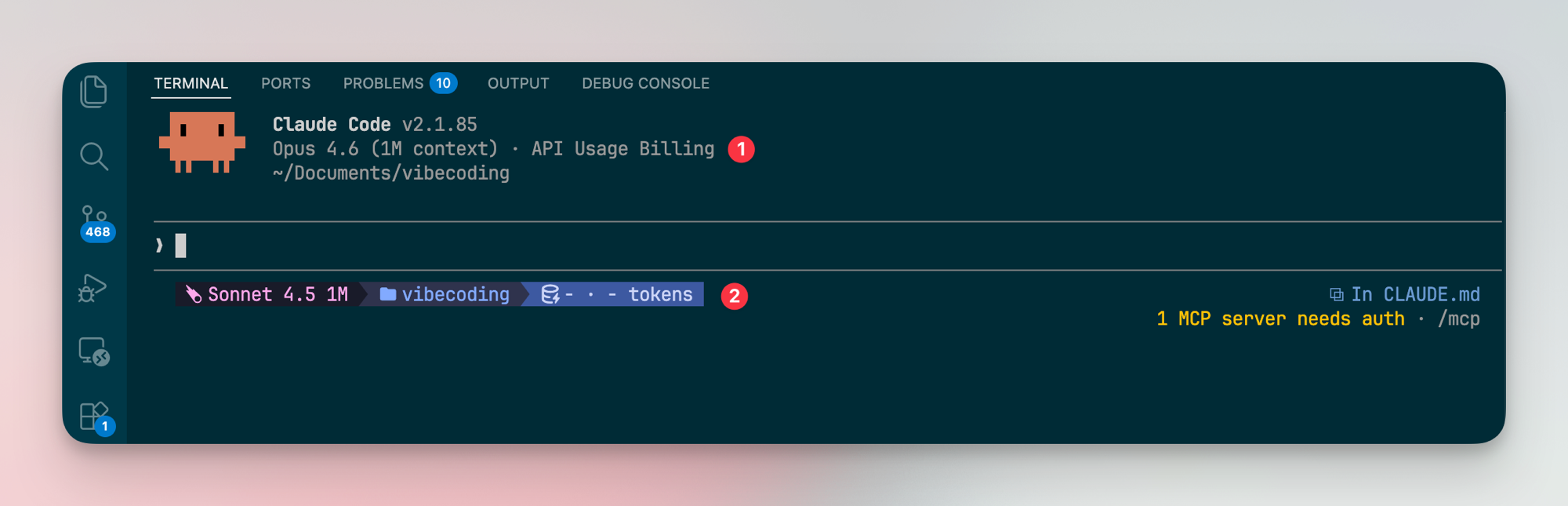
On first launch press Esc to skip login. Confirm "API Usage Billing" appears in the top info bar.
Troubleshooting
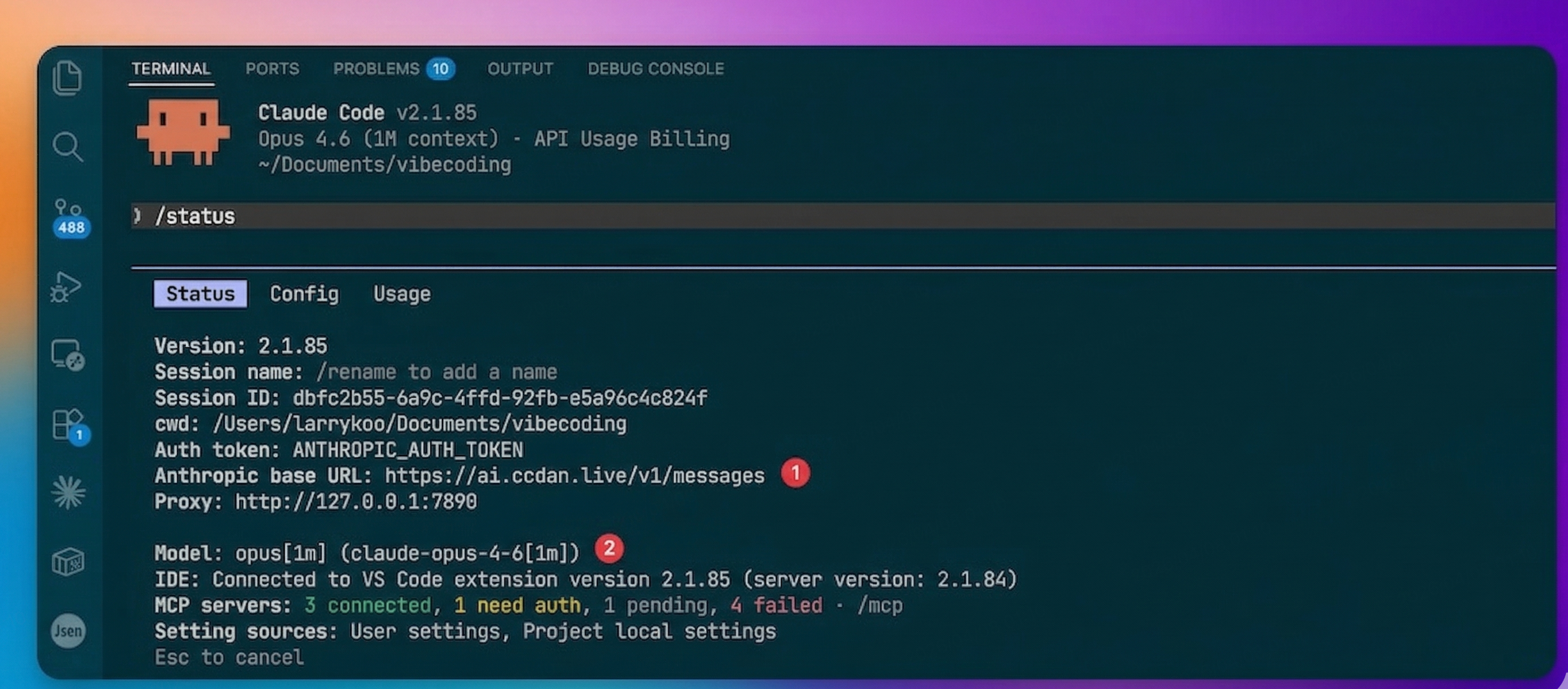
Run /status in Claude Code to check:
- ❶ Anthropic base URL =
https://ai.ccdan.live - ❷ Current model in use
Q: Authentication error
Verify request URL and API Key validity.
Q: Connection timeout
Ensure request URL has no trailing slash.
Q: Streaming stuttering
Global acceleration is built-in; usually a local network issue.